
Frequently Asked Questions
How do I reset fiberdesk’s configuration to its initial values?
Run the following command to reset all window/dialog positions and parameters:
fiberdesk -reset
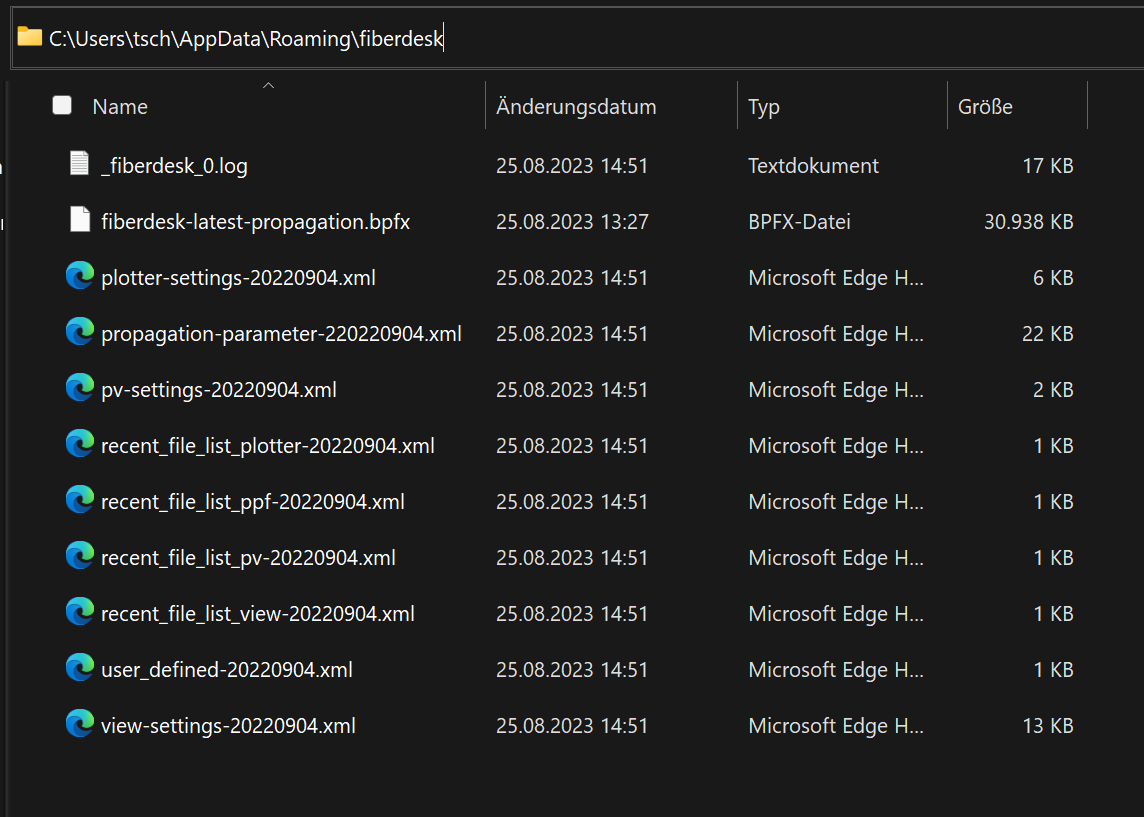
Alternatively, delete all files in:
C:\Users\%USER%\AppData\Roaming\fiberdesk
Can fiberdesk be used for ns pulses or CW light?
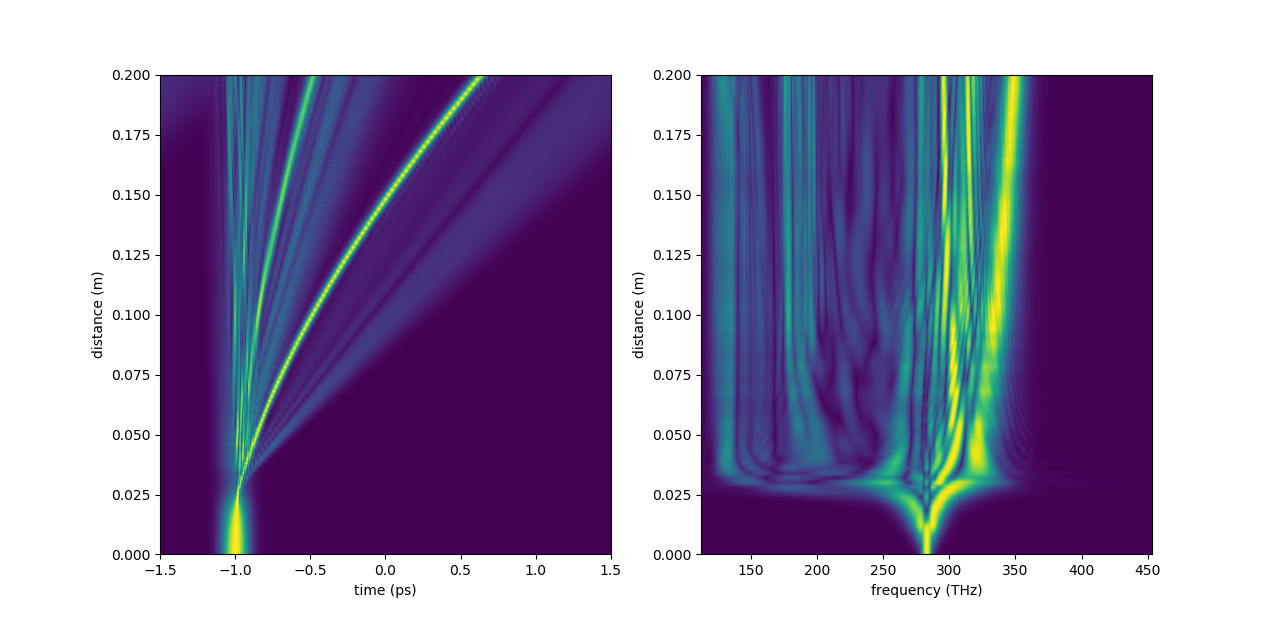
In principle, the nonlinear Schrödinger equation permits propagation of long pulses. Brillouin scattering is not implemented; Raman scattering can be simulated. For CW light, set the repetition rate so that peak and average powers are equal. From fiberdesk 5 onward, the “Create pulse” dialog offers a cw option that equalises the repetition rate to the temporal window automatically.
Note: the spectral bandwidth is determined by the temporal resolution (time window / number of data points). Without the NLSE, ns and CW light can be used in rate-equation simulations.
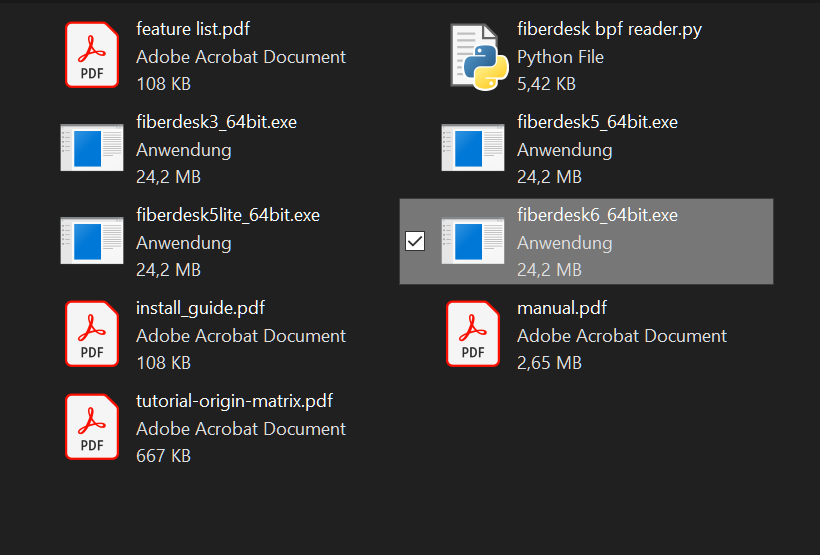
What should I do if the software does not start due to the USB protection key?
USB dongles shipped after 2020 require no driver — Windows installs it automatically.
If you need to install the driver manually:
- Remove the USB stick and start Windows with administrator rights.
- Download the Sentinel HASP/LDK GUI runtime installer, install it.
- Insert the USB stick and start fiberdesk.
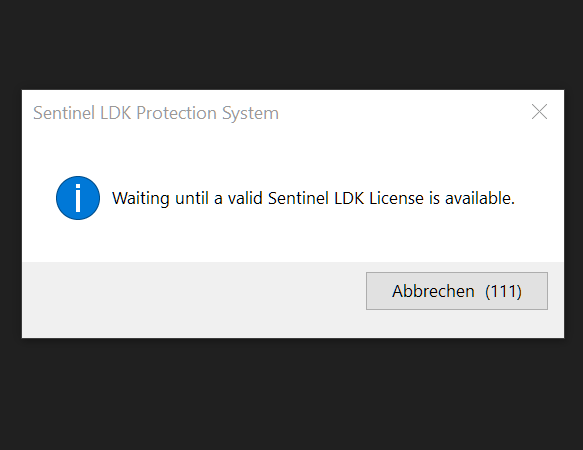
If problems persist, open http://localhost:1947 in your browser and send the feature number or a screenshot to the fiberdesk support address.
You still get an error message?
Open http://localhost:1947 in your browser and send a screenshot or the feature number to the official fiberdesk e-mail address. If that URL is not accessible, install the HASP driver as described above.
fiberdesk does not start even though the USB dongle is working. What can I do?
Check the log file:
C:\Users\%USER%\AppData\Roaming\fiberdesk\_fiberdesk_0.log
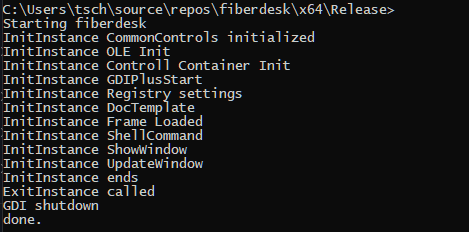
Send that file to support. Also start fiberdesk from the command line and send a screenshot of its output.
Which version is running?
The Message Output docking window shows the version on its first line. You can also press the info button (•) in the top-right of the main window. If your local version is older than the one on this website, an update button will appear on the main ribbon.